Convert Image to SVG for Brother ScanNCut: A Step-by-Step Guide
By Faisal | October 25, 2026 · 7 min read
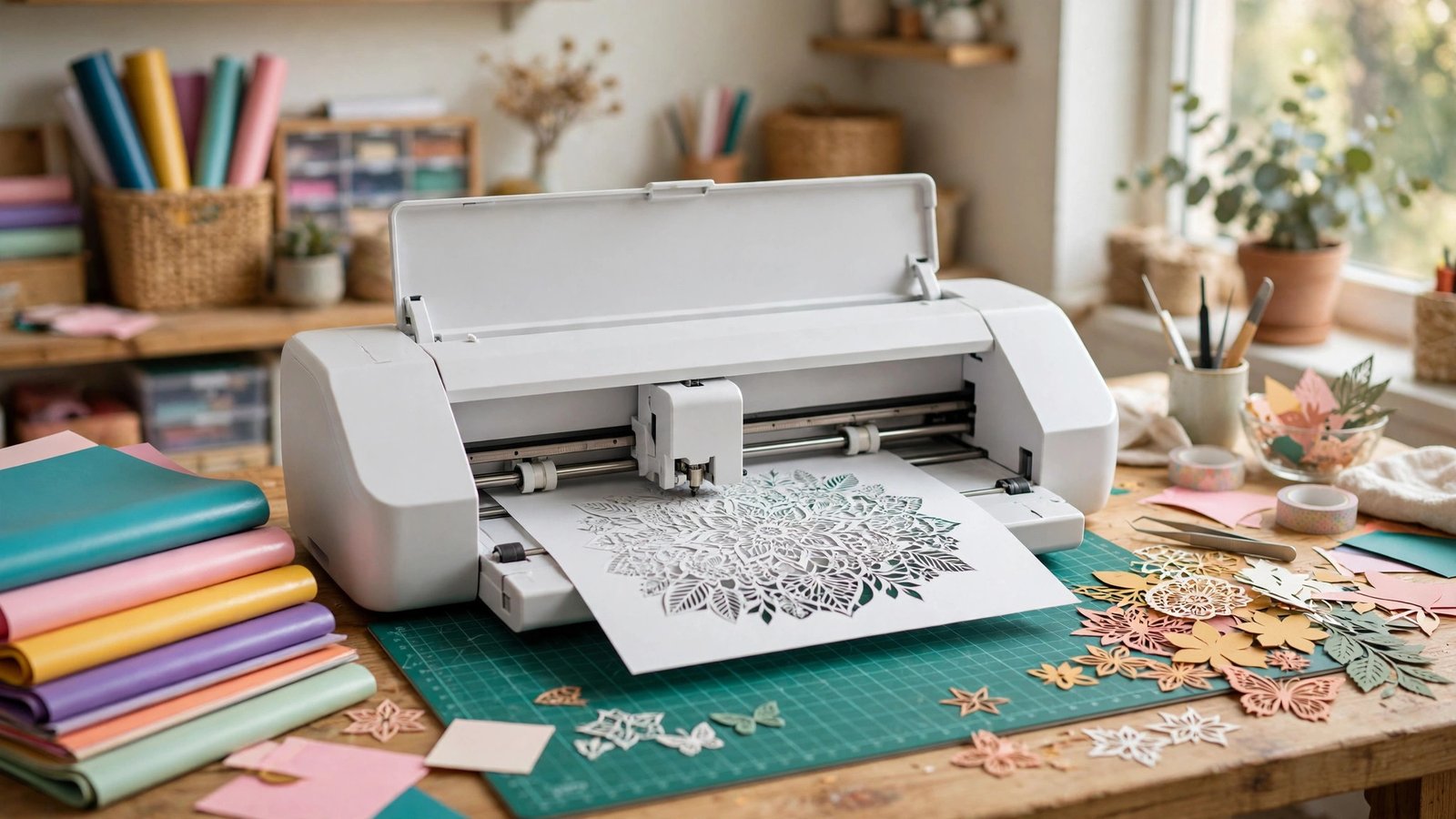
Brother ScanNCut machines cut SVG files — but only after they pass through Brother's CanvasWorkspace software, which is where most beginners get stuck. This guide walks you through the whole path: pick a high-contrast image, convert it to a clean SVG with a free browser-based converter, import it into CanvasWorkspace, and send it to your machine for a clean cut. No software to install, no account needed for the conversion.
What You Need Before You Start
- An image to cut: a logo, a silhouette, a simple drawing, or bold lettering. High-contrast images work best — clean black shapes on a white background cut far better than busy photos.
- A free image-to-SVG converter that runs in your browser (like the one at imagetosvg.net).
- Brother CanvasWorkspace (free, runs in your browser or as a desktop app) and your ScanNCut machine.
- Test material: always do your first cut on scrap vinyl or paper before cutting your good material.
The One Thing to Understand First: SVG vs FCM
This is the gotcha that confuses almost every beginner:
- SVG is the standard vector format your converter produces. It is what you download.
- FCM is Brother's own native cutting format. It is what your ScanNCut machine actually reads from a USB stick.
Your machine will not open a raw SVG file directly from USB. The fix is simple: import the SVG into CanvasWorkspace, and CanvasWorkspace converts it to FCM when you transfer it to your machine. If a file ever "won't open" on your machine, it almost always means the SVG was never sent through CanvasWorkspace first.
Step 1: Choose the Right Image
The best images for ScanNCut have:
- Strong contrast — dark shapes on a light background, or vice versa.
- Simple, closed outlines — logos, silhouettes, and bold lettering cut cleanly. Fine detail, thin lines, and gradients do not.
- A clean background — if your image has a busy background, remove it first so only your subject gets traced.
Photographs of faces or landscapes make poor cutting files. If you want to cut a photo, simplify it first into a high-contrast silhouette — otherwise the blade will try to follow hundreds of tiny paths and jam or tear.
Step 2: Convert the Image to SVG
- Open the free converter at imagetosvg.net and upload your image (PNG, JPG, or GIF). The conversion runs entirely in your browser — your image is never uploaded to a server.
- Choose the Stencil preset. It creates high-contrast black-and-white silhouettes with simple closed paths — exactly what a cutting blade wants to follow.
- Tune the controls if needed:
- Colors: 2. Two colours (black and white) give the cleanest cut file. More colours mean more separate paths and more weeding.
- Threshold: If faint lines are missing, raise it; if dark areas are turning into blobs, lower it.
- Path Omit: 10–15. This discards tiny specks and stray dots so your blade doesn't try to cut dust.
- Preview the result. Look for smooth, closed outlines with no stray dots or broken lines.
- Click Download SVG and save the file somewhere you can find it.
Step 3: Import the SVG into CanvasWorkspace
- Open CanvasWorkspace and create a new project.
- Import your SVG file (File → Import, or drag it onto the canvas).
- Check the size: CanvasWorkspace shows the design's dimensions. Resize it to your intended cut size now — scaling after you add other elements gets confusing.
- Check the paths: zoom in and look for broken lines, stray dots, or overlapping shapes. Delete anything you don't want cut. If a shape looks wrong, go back to the converter and adjust the Threshold or Path Omit, then re-import.
- If your design has multiple colours, note that ScanNCut cuts by layer — each colour becomes a separate cutting step, so plan your vinyl colours accordingly.
Step 4: Transfer to Your Machine and Cut
- Transfer the project to your ScanNCut — depending on your model, this is via USB stick (the file transfers as FCM) or CanvasWorkspace's wireless transfer.
- Load your material onto the mat and do a test cut on scrap first. A test cut tells you whether your blade depth and pressure suit the material before you commit.
- Adjust blade depth and pressure for your material if the test cut is too shallow (doesn't cut through) or too deep (cuts into the mat).
- Run the full cut, then weed slowly — remove the excess vinyl around your design, using a weeding tool for small inner pieces.
Troubleshooting: Common ScanNCut SVG Problems
The machine says it can't read my file
You probably put the raw SVG on the USB stick. Send it through CanvasWorkspace first — it converts SVG to FCM on transfer.
The cut lines are jagged or broken
Your SVG has too many tiny paths. Go back to the converter: raise Path Omit to 10–15, reduce Colors to 2, and add a touch of Blur (1–2) to smooth JPG noise before tracing.
Small pieces are missing or torn
The design has details too small for your blade and material. Either enlarge the design, simplify it (fewer, bolder shapes), or switch to a material that holds fine detail better.
The SVG imports but looks blank in CanvasWorkspace
This usually means the design imported as an outline with no fill, or at a tiny size. Check the layers panel, select all, and resize — and make sure you imported the SVG, not a preview thumbnail.
The cut doesn't match the preview
Check your mat loading and material size settings in CanvasWorkspace before cutting. A design placed partly outside the mat area will cut incomplete.
Tips for Cleaner ScanNCut Results
- Start with silhouettes. Your first five projects should be bold, simple shapes. Complexity can come later.
- Keep a test-cut habit. One small test cut per new material saves ruined vinyl.
- Save your converter settings. When you find a Threshold/Colors/Path Omit combination that cuts well, write it down — it becomes your personal preset.
- Weed from the inside out. Remove small inner pieces first, then the large outer excess — it tears less.
Frequently Asked Questions
Does Brother ScanNCut accept SVG files directly?
Not from a USB stick. ScanNCut machines read Brother's FCM format. Import your SVG into CanvasWorkspace first, and it converts to FCM when you transfer it to the machine.
What is the difference between SVG and FCM?
SVG is the universal vector format your converter produces. FCM is Brother's native cutting format. Think of CanvasWorkspace as the translator between them.
Why does my SVG cut jagged lines on ScanNCut?
Usually too many tiny paths from a noisy source image. Use the Stencil preset, set Colors to 2, raise Path Omit to 10–15, and add slight Blur to smooth JPG artifacts before tracing.
Can I convert a photo to SVG for ScanNCut?
Technically yes, but photos make poor cutting files — hundreds of tiny paths that jam blades and tear vinyl. Simplify a photo into a high-contrast silhouette first, then convert.
Is the imagetosvg.net converter really free?
Yes — it runs entirely in your browser, with no account, no watermark, and no upload of your images to any server.
Final Verdict & Summary
ScanNCut cutting is straightforward once you understand the SVG-to-FCM path: convert cleanly with the Stencil preset, import into CanvasWorkspace, test cut on scrap, and weed inside-out. Most "broken file" problems are just an SVG that never went through CanvasWorkspace.
Need a clean SVG for your project?
Try our free, browser-based converter. Upload any PNG, JPG, or GIF and generate clean SVG vector paths instantly without registration.
Open the Free Converter →